
Connect Claude, ChatGPT and other AI tools to Odoo 20 with MCP
Odoo 20 Enterprise has a built-in MCP server, which lets Claude connect to your database and answer questions from your real data. On the Claude side it’s one form and a login. I went through it on an Odoo 20 demo database for the screenshots below. ChatGPT, Grok and other AI tools connect to the same server, and they’re covered at the end.
What you need before you start
You need Odoo 20 Enterprise. That covers Odoo Online (the yourcompany.odoo.com kind),
Odoo.sh and Enterprise on your own server. Odoo Community doesn’t have the MCP server.
If you’re on Community and want Claude connected anyway, email me. This is the kind of
AI integration work I do, and we can look at the
options.
Your Odoo database has to be reachable from the internet. Claude connects from Anthropic’s servers, not from your computer, so claude.ai can’t reach a database that only runs on your office network. Odoo Online and Odoo.sh are fine. If yours is private, the API key section further down has a way around it.
Custom connectors work on every Claude plan, and the Free plan allows one. On Team and Enterprise plans an Owner adds the connector for the organization first (Organization settings > Connectors), and then each person connects with their own Odoo login.
Claude works as the Odoo user who signs in, with that user’s access rights, so it sees what you’d see in Odoo and nothing more. It has to be a regular user; portal users can’t connect.
Check that Odoo’s MCP server is installed
The module is called AI MCP Server, and it installs itself along with Odoo’s AI app. To check whether you have it, open Apps, remove the “Apps” filter from the search bar and search for “MCP”. If AI MCP Server isn’t installed, install it.
Your MCP server address is your Odoo address with /mcp on the end. If you log in at
https://yourcompany.odoo.com, it’s https://yourcompany.odoo.com/mcp.
Connect Claude to Odoo
These steps are on claude.ai.
Open Customize > Connectors, click Add in the top right corner and choose Add custom connector.

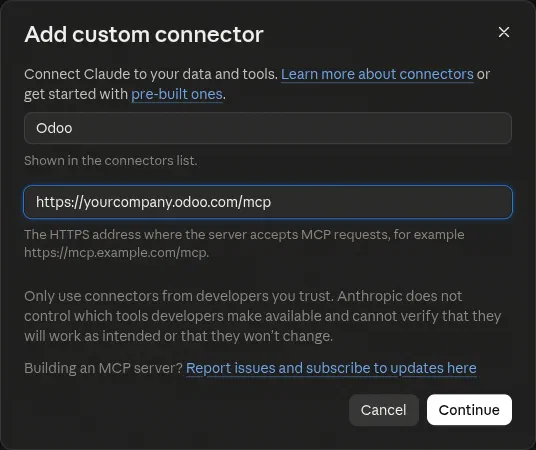
Give the connector a name (I used “Odoo”), paste your MCP server address and click Continue.
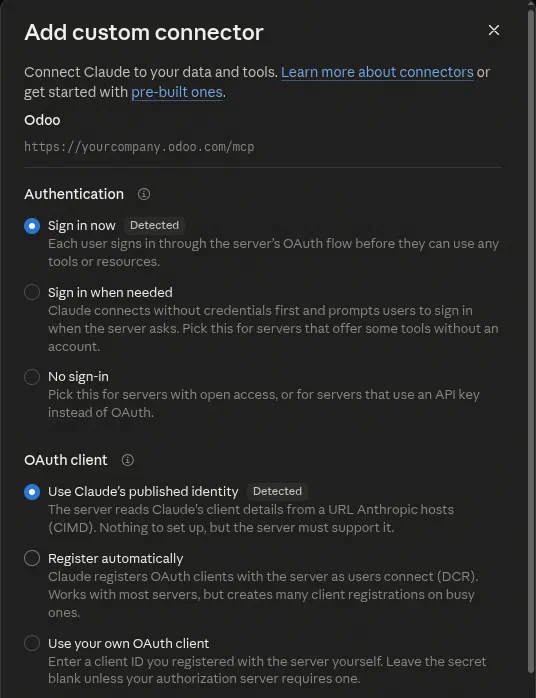
Claude checks the address and works out how Odoo handles sign-in. It should select Sign in now and Use Claude’s published identity by itself, both marked Detected. Leave them, scroll down and click Add.
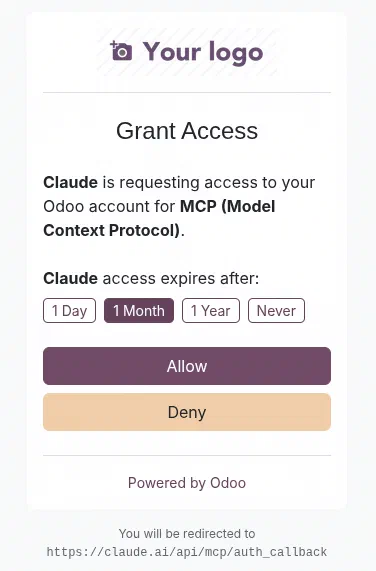
Click Connect. Claude opens your Odoo database, where you log in if you aren’t already and land on a Grant Access page.
Pick how long Claude keeps access (1 Day, 1 Month, 1 Year or Never) and click Allow.
Claude says “Connected to Odoo” and lists the tools Odoo shares with it.
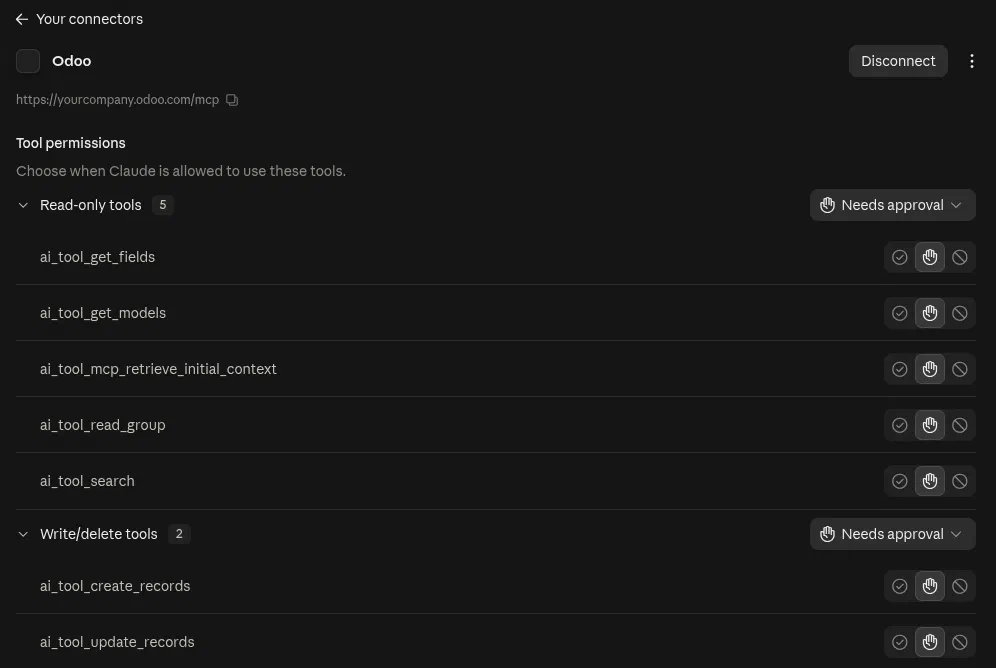
Out of the box Odoo shares five tools, and all of them only read. Two tell Claude what
data exists in your database (ai_tool_get_models and ai_tool_get_fields), one
searches records, one adds them up in groups, and one gives Claude your name, company
and time zone at the start of a chat. My screenshot also shows two write tools under
“Write/delete tools”, because I had already switched them on for the demo; how to do
that is further down.
Every tool starts on “Needs approval”, so Claude asks before each use. The three icons next to a tool let you allow it without asking, keep asking, or block it.
Ask Claude about your Odoo data
Start a new chat, click the + below the message box, open Connectors and check that Odoo is switched on.
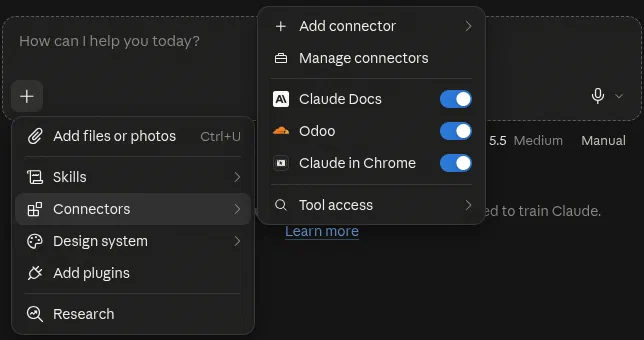
Then ask your question. I asked the demo database: “Who were our five biggest customers by confirmed sales this year, and how much did each of them order?”
Before Claude uses an Odoo tool, it shows you what it’s about to look up. Here it wants to total the confirmed 2026 sales orders by customer:
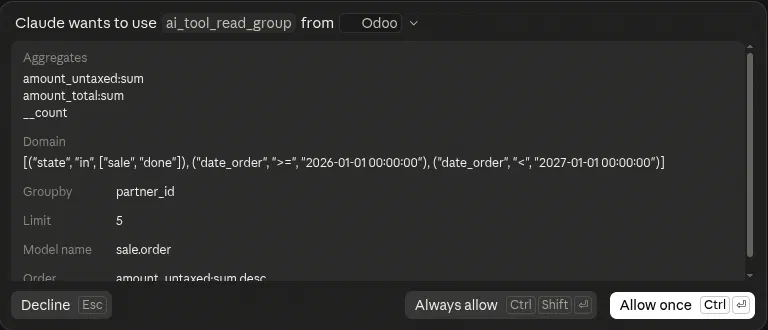
Allow once lets that one call through. Always allow stops Claude asking about that tool. After two more lookups it answered:
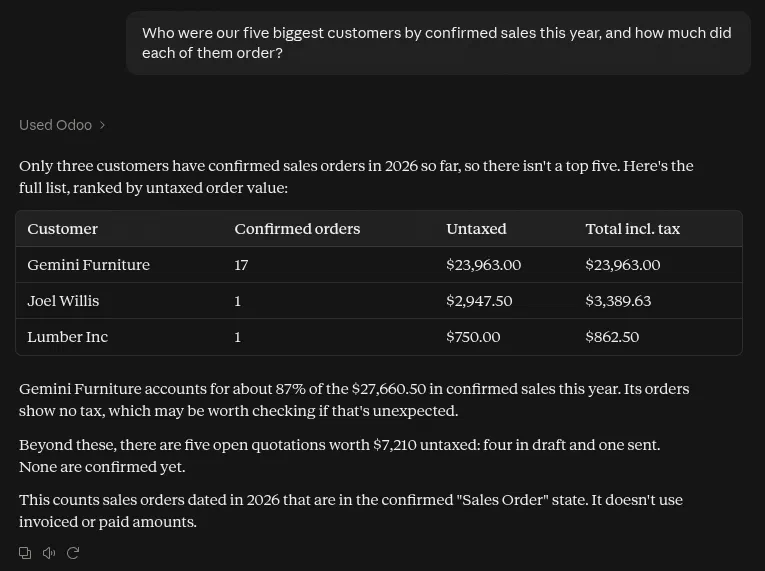
I checked the figures against the database and they match. The demo data only has three customers with confirmed orders this year, and Claude pointed that out before listing them.
Let Claude create and update records
By default Claude can only read. Odoo 20 also has tools for creating and updating records, but they’re switched off for MCP. You need to be an administrator to switch them on:
Turn on developer mode: go to Settings, scroll to the bottom and click Activate the developer mode.
Go to Settings > Technical > Actions > Server Actions and open “AI Tool: Create Records”.
On the Usage tab, tick Available in MCP and save. Leave Readonly Tool unticked, since this tool writes.

Do the same for “AI Tool: Update Records” if Claude should also be able to edit existing records.
In Claude, open the Odoo connector under Customize > Connectors, click the three dots and choose Refresh tools list. The new tools appear under Write/delete tools.
This setting is for the whole database. Every user who connects an AI tool gets these tools, though each of them can still only change what their own Odoo access rights allow.
With both tools switched on, I asked: “Lumber Inc called and wants a quote for 20 office chairs. Can you add a CRM lead for that?” Claude looked up the customer and the chairs, then showed me exactly what it was going to create:
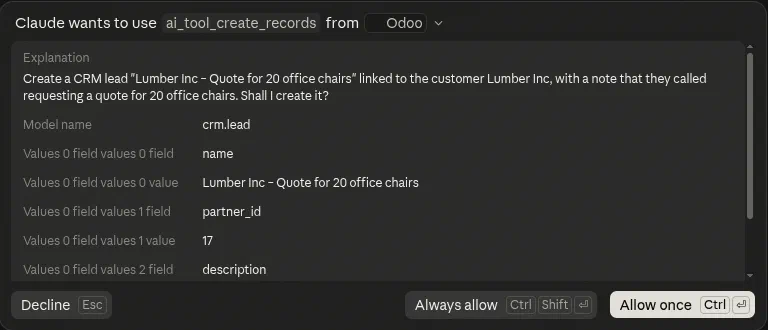
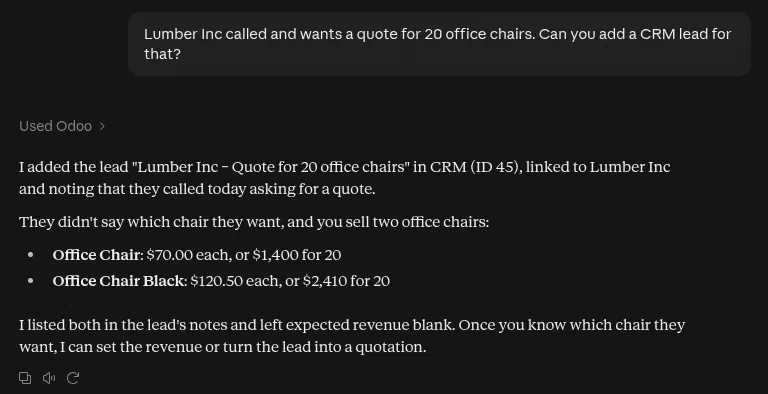
The lead was in Odoo straight away, created by the user I had signed in with:
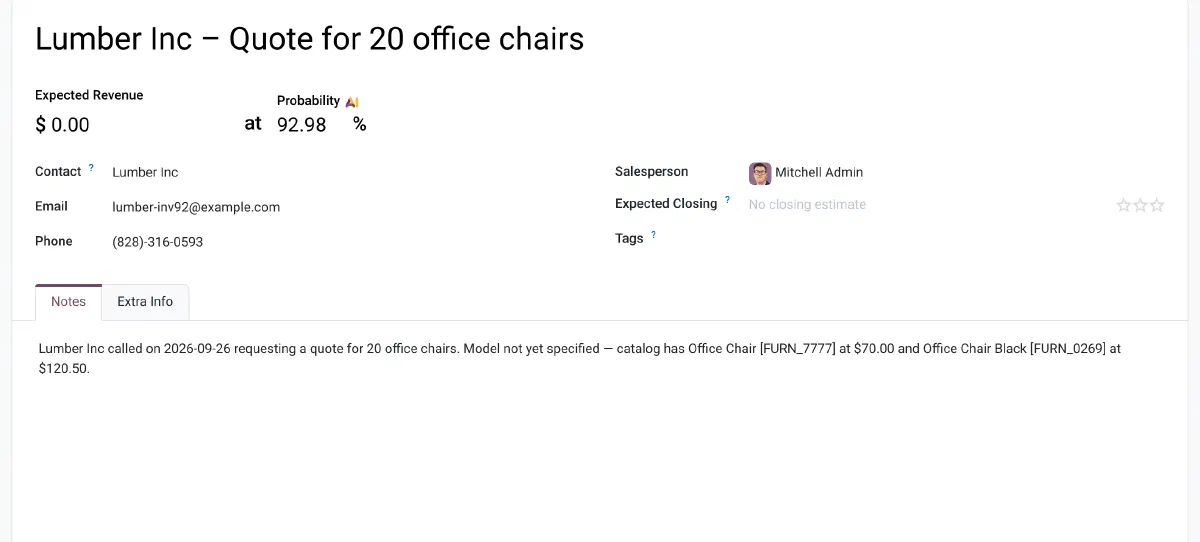
As long as the write tools stay on “Needs approval”, Claude asks before every change and shows what it’s about to write.
Disconnect Claude from Odoo
You can cut the connection from either side. In Claude, go to Customize > Connectors, open Odoo and click Disconnect, or choose Remove from the three dots menu to delete the connector.
In Odoo, the Allow button created an API key named “Claude” on your user. Click your avatar, open My Preferences, go to the Security tab and delete that key. The access also ends on its own after the period you picked on the Grant Access page.
Connect ChatGPT, Grok and other AI tools to Odoo
The same MCP server works with other AI tools. How you connect depends on whether the tool can sign in through Odoo the way Claude does, or needs an API key instead.
ChatGPT and Grok
Odoo 20 lets ChatGPT and Grok sign in the same way as Claude, so on the Odoo side
nothing changes: you give the tool your /mcp address, log in to Odoo and click Allow.
In ChatGPT, adding your own MCP server needs Developer mode, which you switch on in
ChatGPT’s settings. OpenAI’s
help article on developer mode
has the current steps and the plans that include it.
Claude Code
Claude Code is on Odoo’s list too, so it can use the same sign-in. If you’d rather use an API key (see below), add the server like this:
claude mcp add --transport http odoo https://yourcompany.odoo.com/mcp \
  --header "Authorization: Bearer YOUR_API_KEY"
Tools that connect with an API key
Some tools can’t use Odoo’s sign-in and take an API key instead. An API key is also the way to go when your Odoo database isn’t reachable from the internet, since tools running on your own computer (Claude Code, Codex, the Claude desktop app’s local config) connect from your network.
To create a key, click your avatar, open My Preferences, go to the Security tab and click Create API Key. Odoo asks for your password, then shows this:
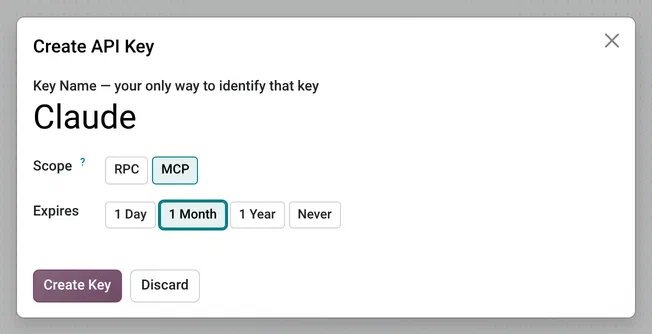
Name the key, choose MCP as the scope, pick an expiry and click Create Key. Odoo shows the key once, along with what to paste into your AI tool:
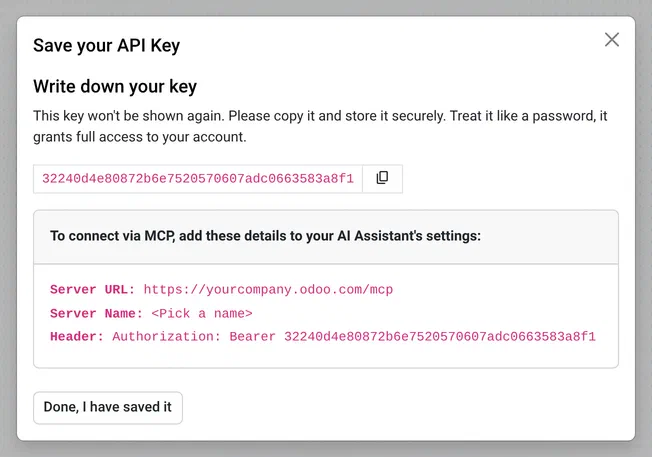
Your tool needs the server URL and a header Authorization: Bearer followed by the key.
Odoo’s own
MCP server documentation
has ready-made config for the Claude desktop app, Claude Code, Codex and Antigravity.
Treat the key like a password. Anyone who has it can use Odoo as you, and Odoo won’t show it again, so store it in a password manager.
An AI tool that isn’t on Odoo’s list
Odoo keeps the list of tools that may sign in under Settings > General Settings > Integrations > MCP OAuth. By default it has ChatGPT, Claude, Claude Code and Grok. Each line is a web address the tool’s maker publishes, so to allow another tool, add its address on a new line.
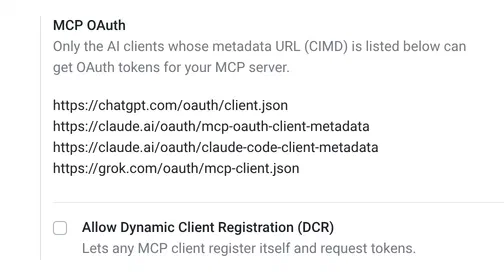
The Allow Dynamic Client Registration (DCR) box below it lets any MCP client register itself. It saves editing the list, but it also means any tool can ask your users for access. For a single extra tool, an API key keeps things tighter.
When it doesn’t connect
- Odoo says “CIMD URL … isn’t allowed”: the AI tool isn’t on the MCP OAuth list above.
- Odoo says “Only internal users are allowed to use oauth for mcp”: you’re logged in as a portal user. Log in with a regular user.
- Claude can’t reach the server: your Odoo database isn’t reachable from the internet. Use an API key with a tool that runs on your computer.
- Claude can’t add a second connector: the Free plan allows one custom connector.
- Claude says it can’t create or change records: the write tools aren’t switched on, or Claude hasn’t picked them up yet. Use Refresh tools list on the connector.