
 MN Global Search
Type a name, open the record
MN Global Search teaches Odoo's command palette to find records as well as menus, and puts a search field in the top bar. Click it or press "/", type a customer's name or an order number, and open it from there. It works as soon as it's installed, with nothing to set up or index.
- Odoo 19 and 20
- Community and Enterprise
- Desktop and mobile
See it in 30 seconds
Find a contact, open it, get back to it later
Searching for Ready Mat from the top bar, narrowing the lists to Contacts, opening Julie Richards, going to Quotations from the frequent menus, then reopening her from the recent recordsYou know the order number. Odoo wants you to pick an app first.
A customer calls about S00042. Before you can look it up you open Sales, clear the “My Quotations” filter, click into the search bar and type it. When it turns out to be about the delivery, you do the same again in Inventory.
The command palette already jumps to any menu. MN Global Search lets it jump to the record too, from any screen, without leaving the keyboard.
Right there in the top bar
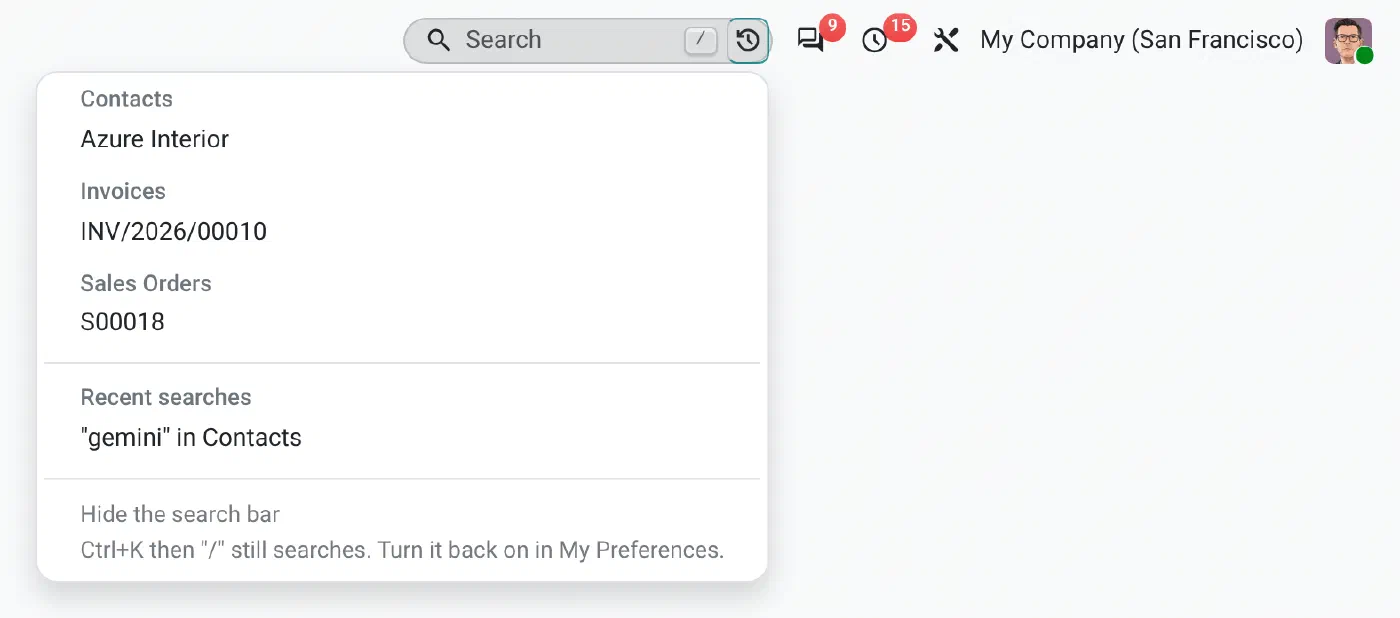
Many Odoo users never find the command palette. The search field sits next to your notifications on every screen, so nobody has to learn a shortcut first. People who like the keyboard press / from anywhere. The clock at its end opens your recent records and searches.
On a narrow screen it shrinks to its icons. Anyone who doesn’t want it can hide it from the field itself or from My Preferences.
Step one
See where it turns up
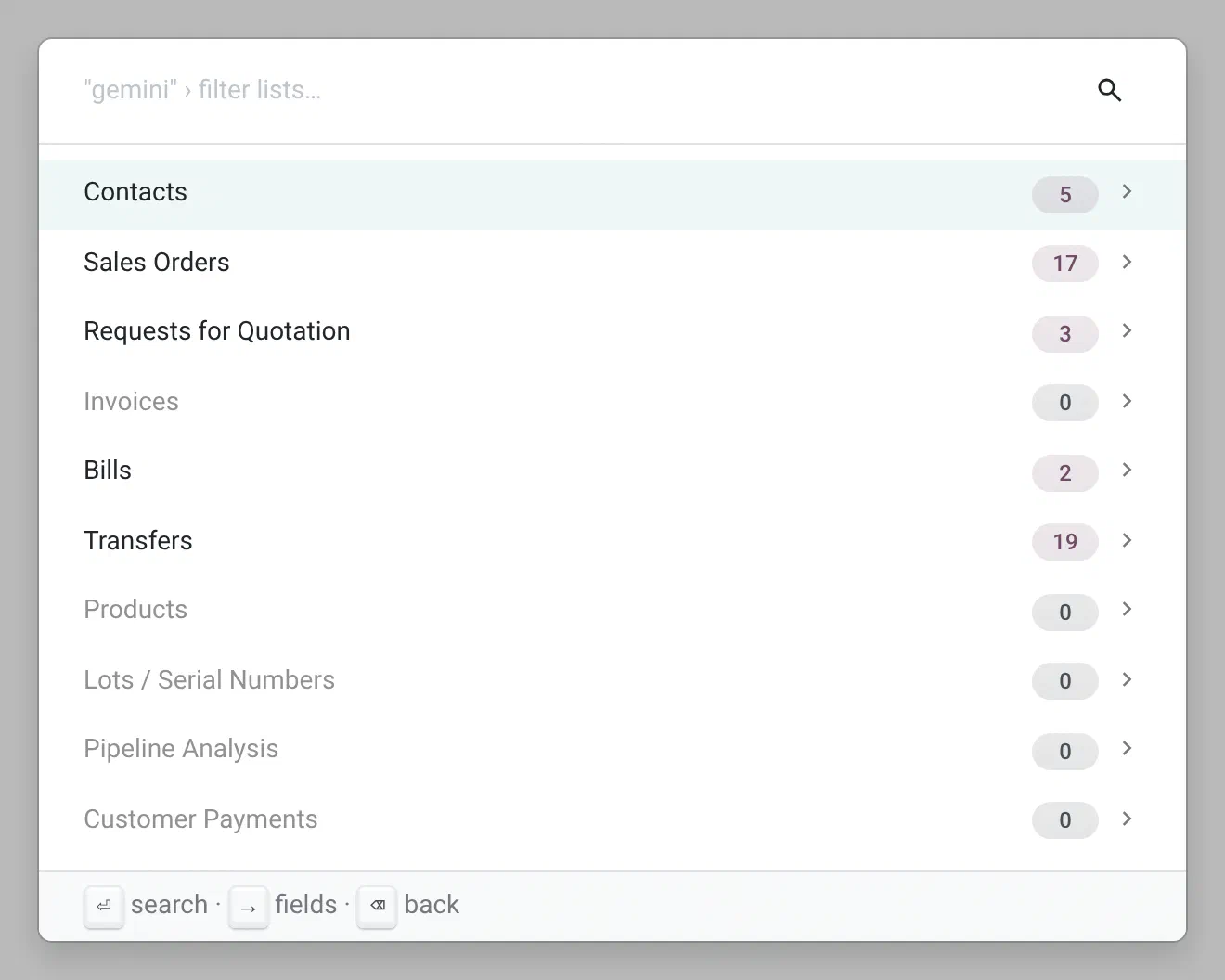
Press Enter on the Find row and the palette lists every place you can search, right away, in the order you use them. How many records match in each fills in as it’s counted, and nothing moves around while it does, so you can press Enter on the list you want before its number is even there.
Pick one. A single match opens the record. Several open the list, filtered by a search you can remove to get the whole list back. Invoices and vendor bills are separate lists, so you don’t wade through one to reach the other.
Step two, if you need it
Search the field you mean
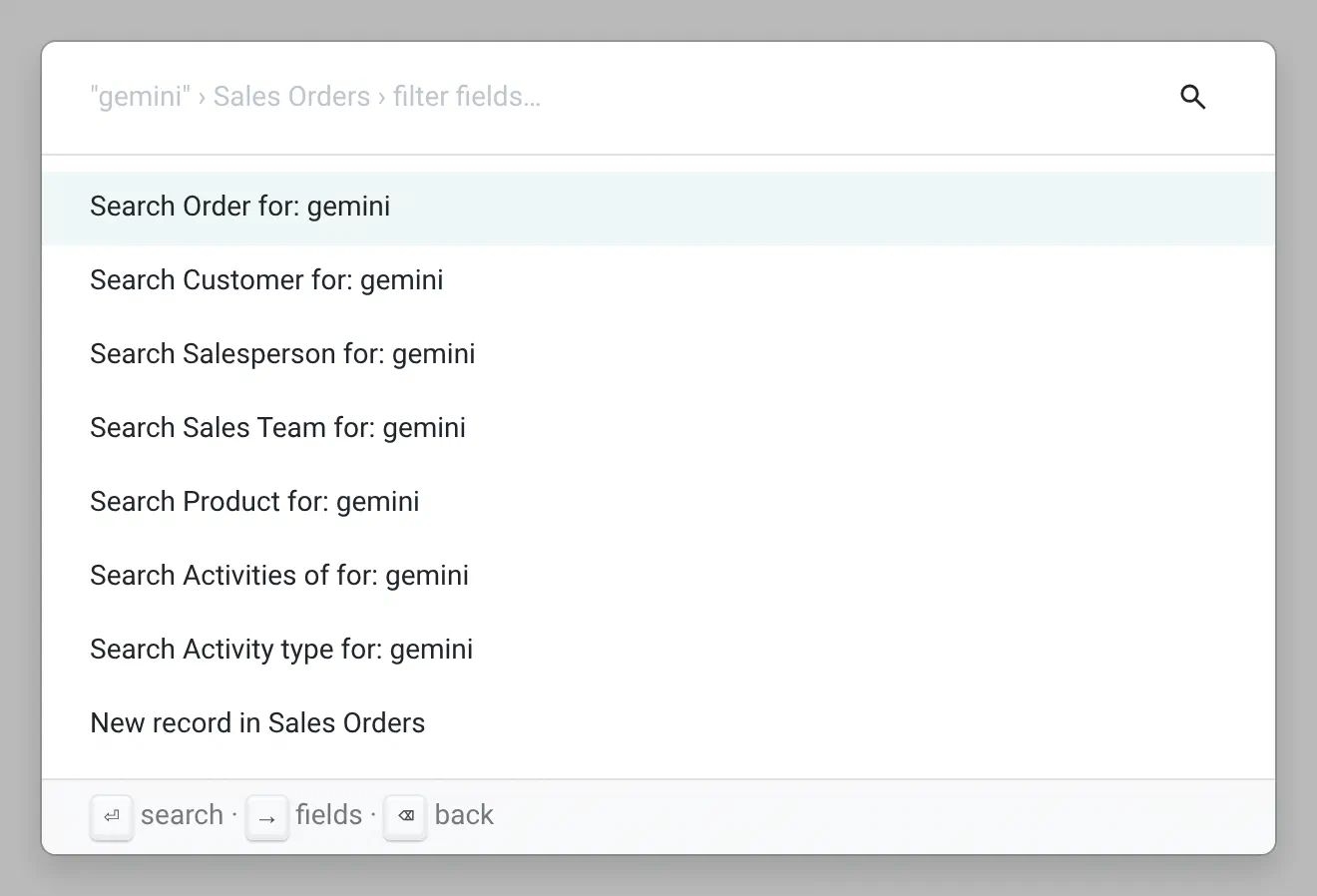
Press → on a list to choose a field: the customer, the product, the salesperson. These are the same fields the list’s own search bar offers, so the results match what you would get there.
Nothing found? The last row creates a new record in that list. Backspace takes you back up to the list you came from, with your text still there.
Back to what you had open
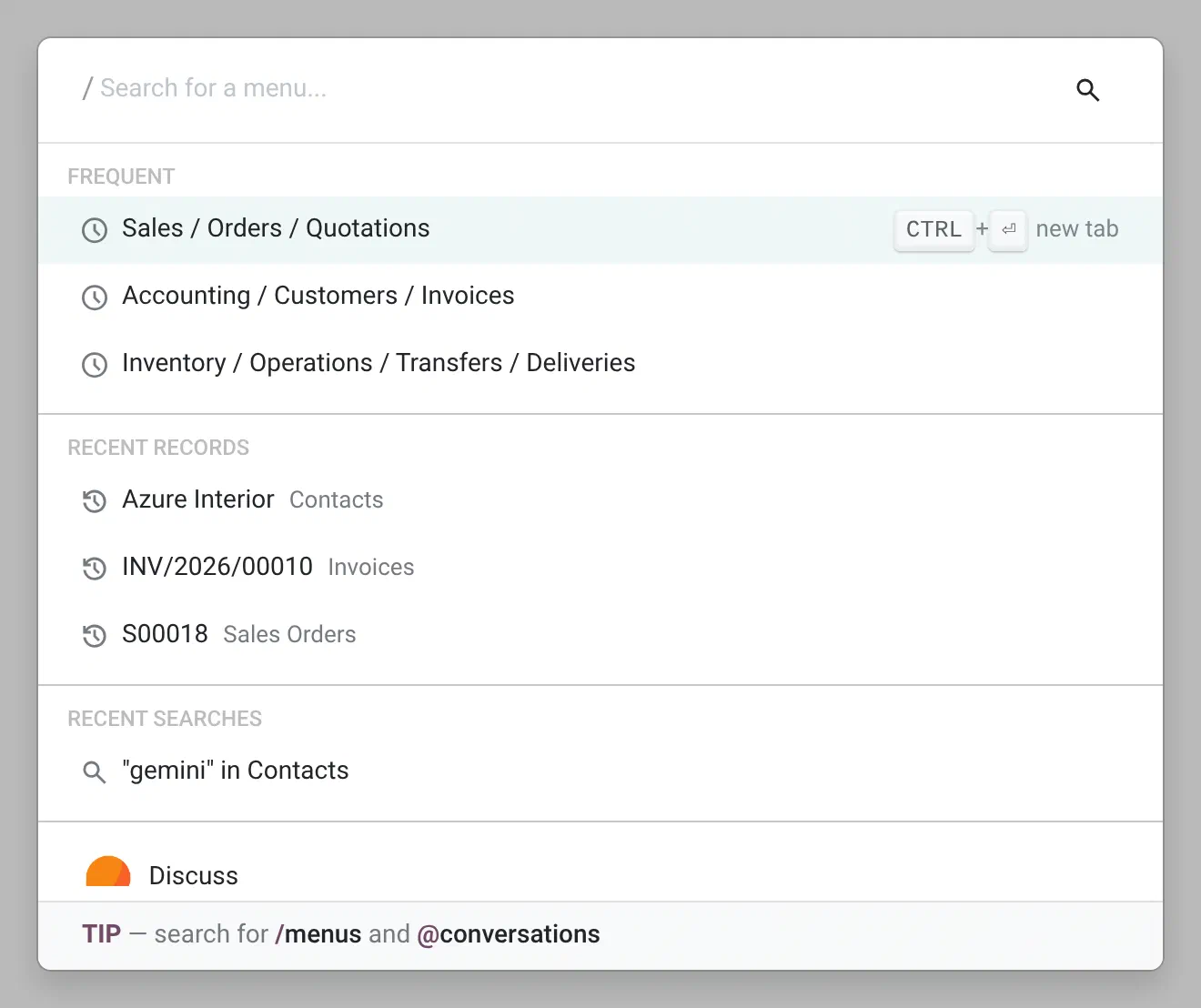
Type / on its own and the palette starts with the menus you use most, the records you opened last and your last few searches. The clock in the search field lists the same recent records, grouped by kind.
The menus you open often also move up when you search for a menu, so “inv” lands on the invoices you open every day before the inventory report you opened once.
On your phone as well
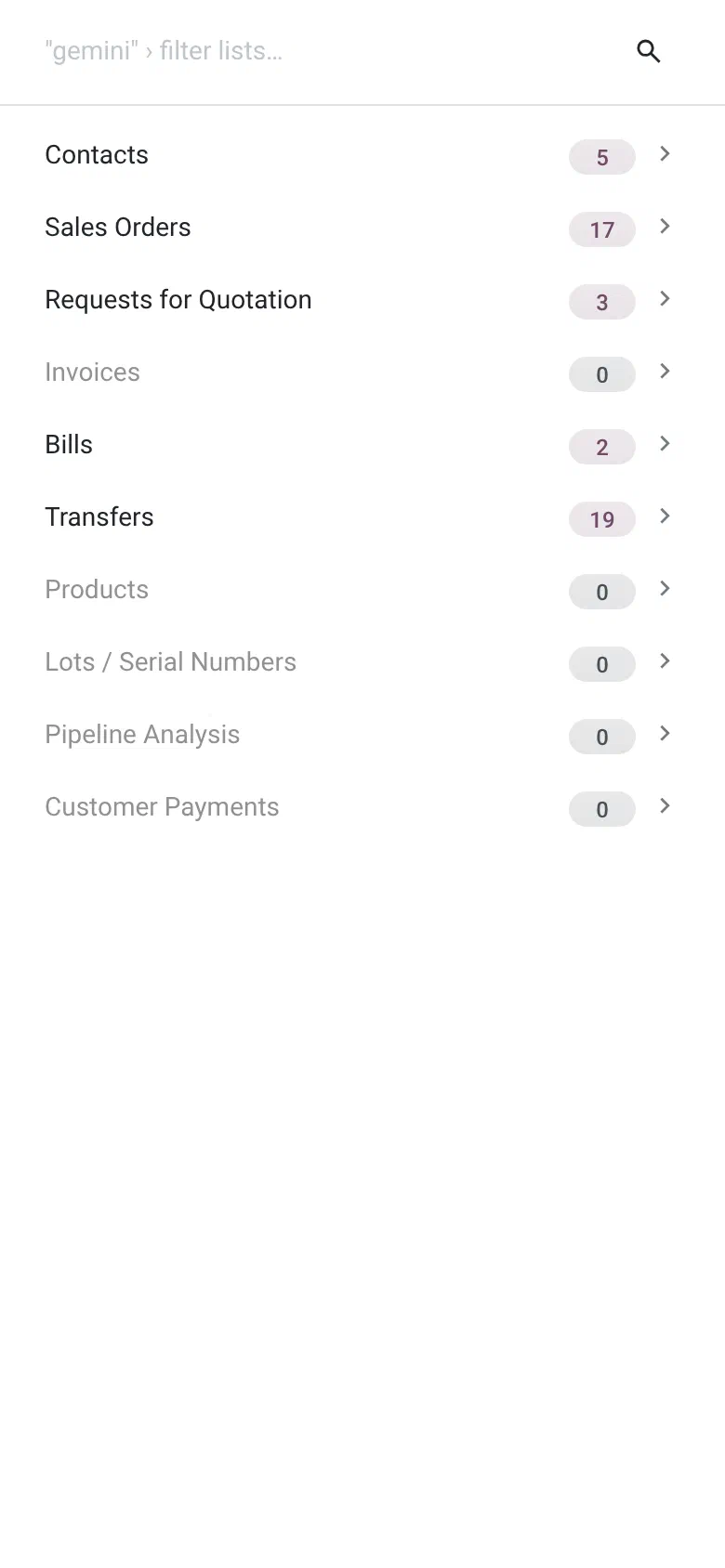
On a phone the search field moves into your user menu, out of the way. Tap Search and the same palette opens, with the same lists, counts and recent records.
The small things that make it pleasant
Typing stays fast
Nothing waits on the server while you type. One slow list never holds up the others, and you can pick a list before its count is in.
Order numbers just work
References like S00042 or WH/OUT/00012 are found as typed. Unless what you type is the start of a menu, the Find row is first, one Enter away.
Only what you may see
Each user searches the lists their menus lead to, as themselves. Access rights and record rules apply as they do everywhere else in Odoo.
A proper page to land on
A record opens the way it would from its own menu, with clean breadcrumbs and the right app in the top bar.
Follows you around
Recent records and favorite menus are kept on the server for each user, so they’re there on your laptop and your desk computer alike.
Adjustable by admins
Turn any model on or off, choose which lists and field it is searched in, and drag models into the order that suits your company.
Questions people ask
What does it search out of the box?
Contacts, sales orders, requests for quotation, invoices and bills, transfers, manufacturing orders, products, lots, leads, tasks, helpdesk tickets, payments, employees, repairs and maintenance requests, for whichever of those apps you have installed. Administrators can add any other model.
Does it change the menu search I already use?
Menus are still listed as before, right below the Find row. When what you type is the start of an app’s name or of a menu you have opened before, like “sa” for Sales, the menus come first instead. The menus you open most often are sorted to the top of the good matches.
Does it work on Odoo Community?
Yes. It only needs Odoo’s web client. On Enterprise you can also start typing right on the home screen.
Does it work with MN Bookmarks?
Yes. Your bookmarks stay at the top of the “/” results, and the records and menus from Global Search come right after them.
Can I hide the search field?
Yes. Each user can hide it from the bottom of its clock menu or from My Preferences, and turn it back on the same way. Ctrl+K followed by “/” keeps working either way.
What if a recent record was deleted?
The palette tells you it’s no longer available and drops it from your recent records the first time you click it. A record from a company you haven’t selected stays in the list, and the palette tells you which company to pick.
Questions before you buy?
Email me at miika@miikanissi.com. Bug reports and feature ideas are welcome too.
Odoo 19 and 20, Community and Enterprise. Licensed under the Odoo Proprietary License v1.0 (OPL-1).