
 MN Bookmarks
Your favorite Odoo screens, one click away
MN Bookmarks puts a bookmarks bar next to everything you do in Odoo. Save the screen you're on, with its filters, grouping and view, and open it again whenever you need it.
- Odoo 19 and 20
- Community and Enterprise
- Desktop and mobile
See it in 20 seconds
Save a screen, go somewhere else, come straight back
Filtering the CRM pipeline, bookmarking it in one click, then reopening it from the bookmarks barStop rebuilding the same screen every morning
Most people open the same handful of screens every day: quotations still waiting to go out, this month’s pipeline, customers in one region. Getting there means the same menu clicks and the same filters, every time.
A bookmark remembers the whole screen, down to the pivot measures and the chart type. Click it and you’re back where you left off.
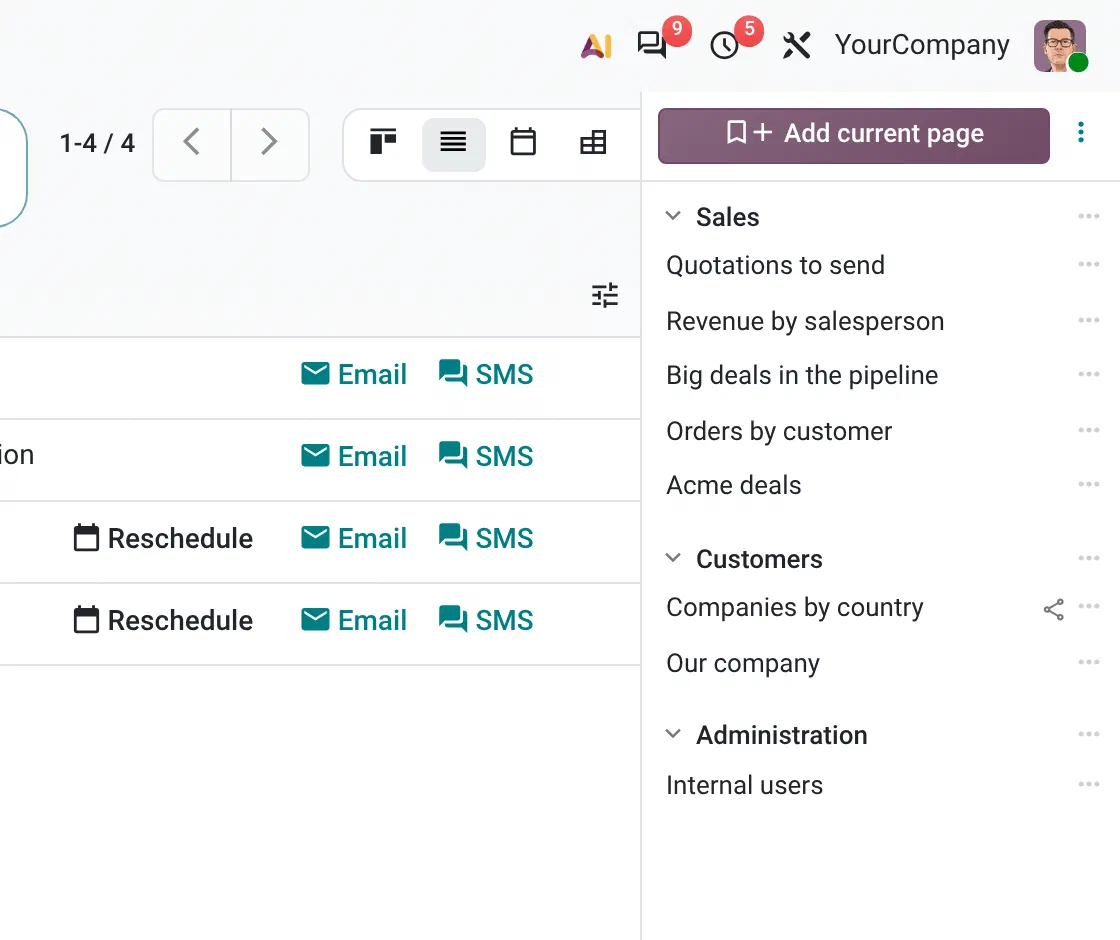
Bookmark any page in one click
Click Add current page or press Alt+Shift+B. The bookmark names itself after the screen and its filters, like “Pipeline · Azure”. Keep the name or type a better one.
Group bookmarks into sections such as Sales or Customers, drag them into the order you like, and fold away the sections you don’t need right now.
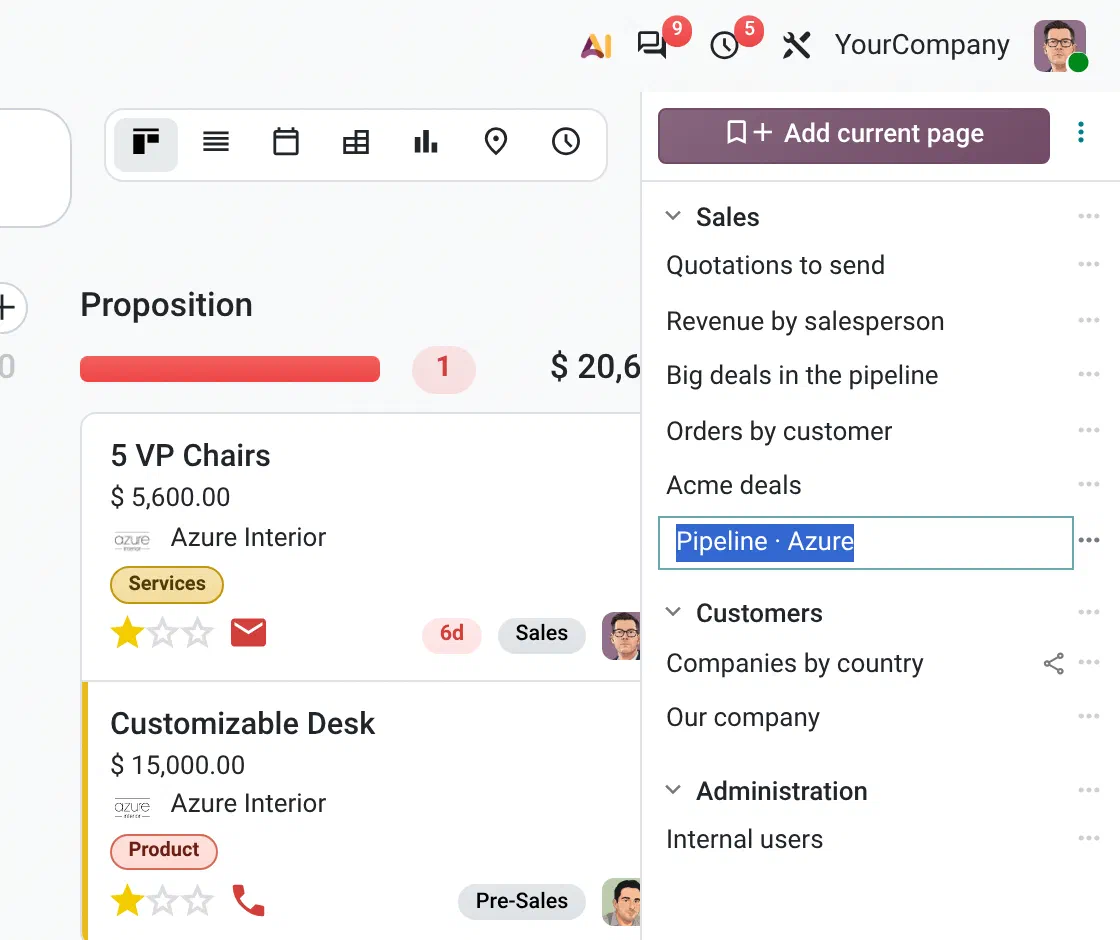
As much room as you want to give it
Keep the bar open with every name in view, shrink it to a strip of icons, or tuck it behind a small tab until you need it. The bar sits beside your work instead of on top of it, and each person picks the mode that suits them.
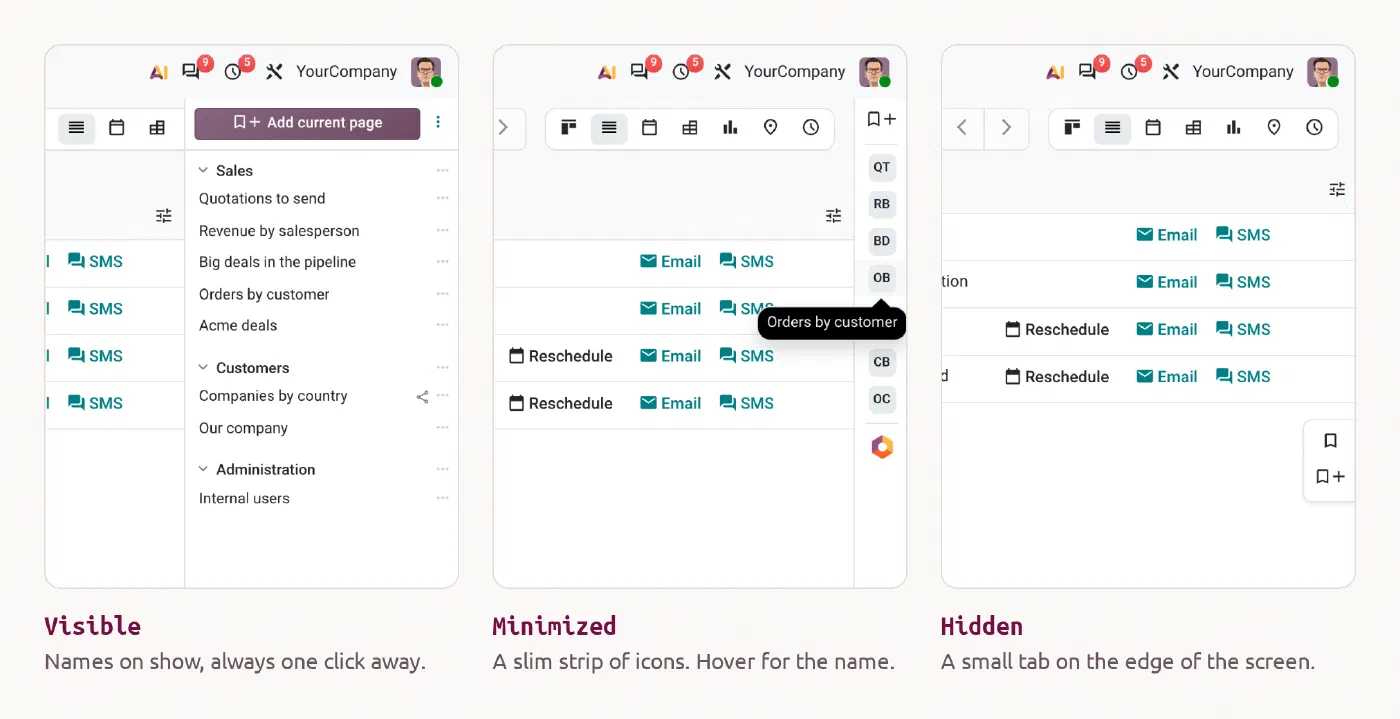
Or never touch the mouse
Press Ctrl+K and type /. Your bookmarks come up first, above Odoo’s apps and menus, with the ones you opened last at the top. Keep typing to narrow it down.
On Enterprise you can start typing right on the home screen.
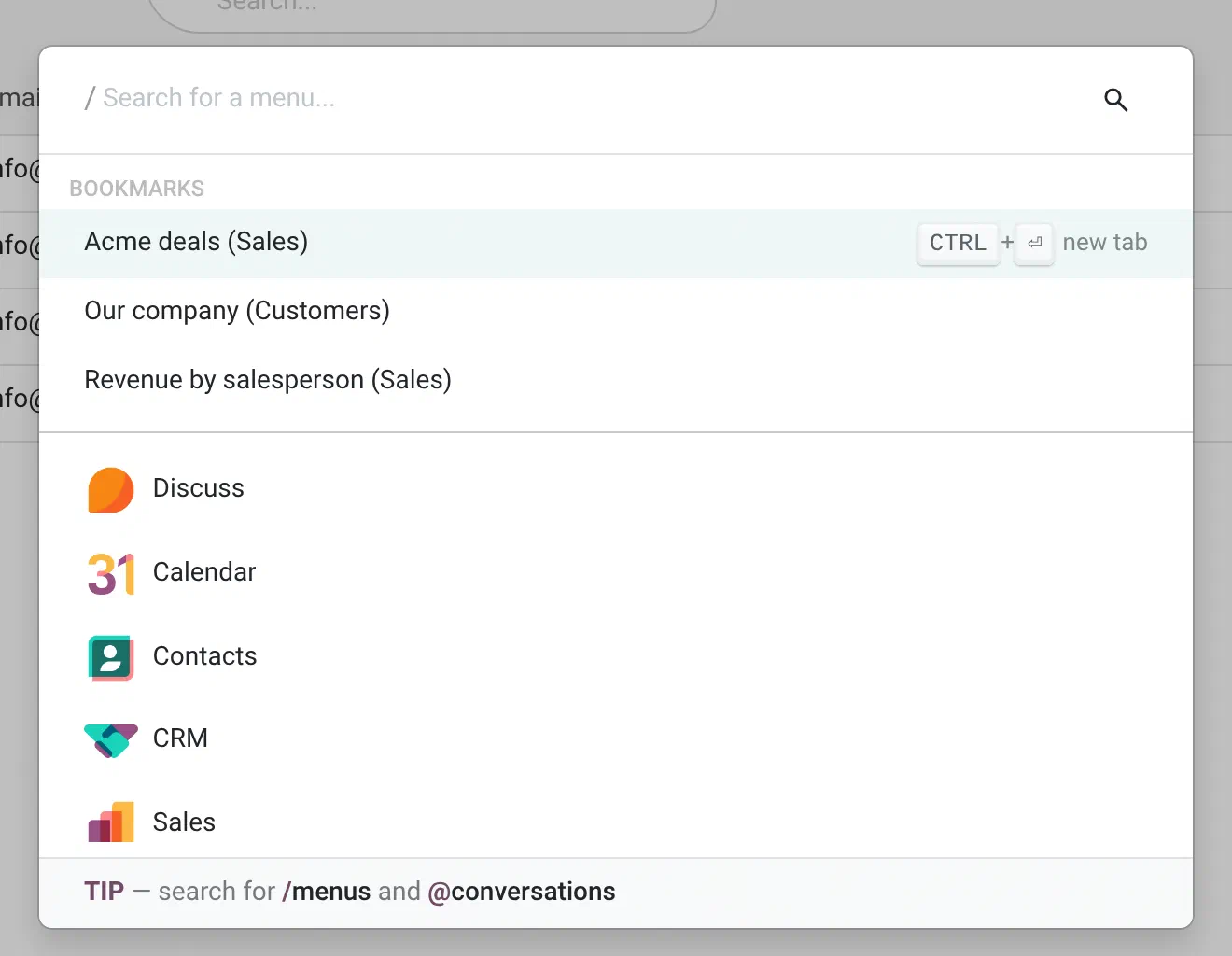
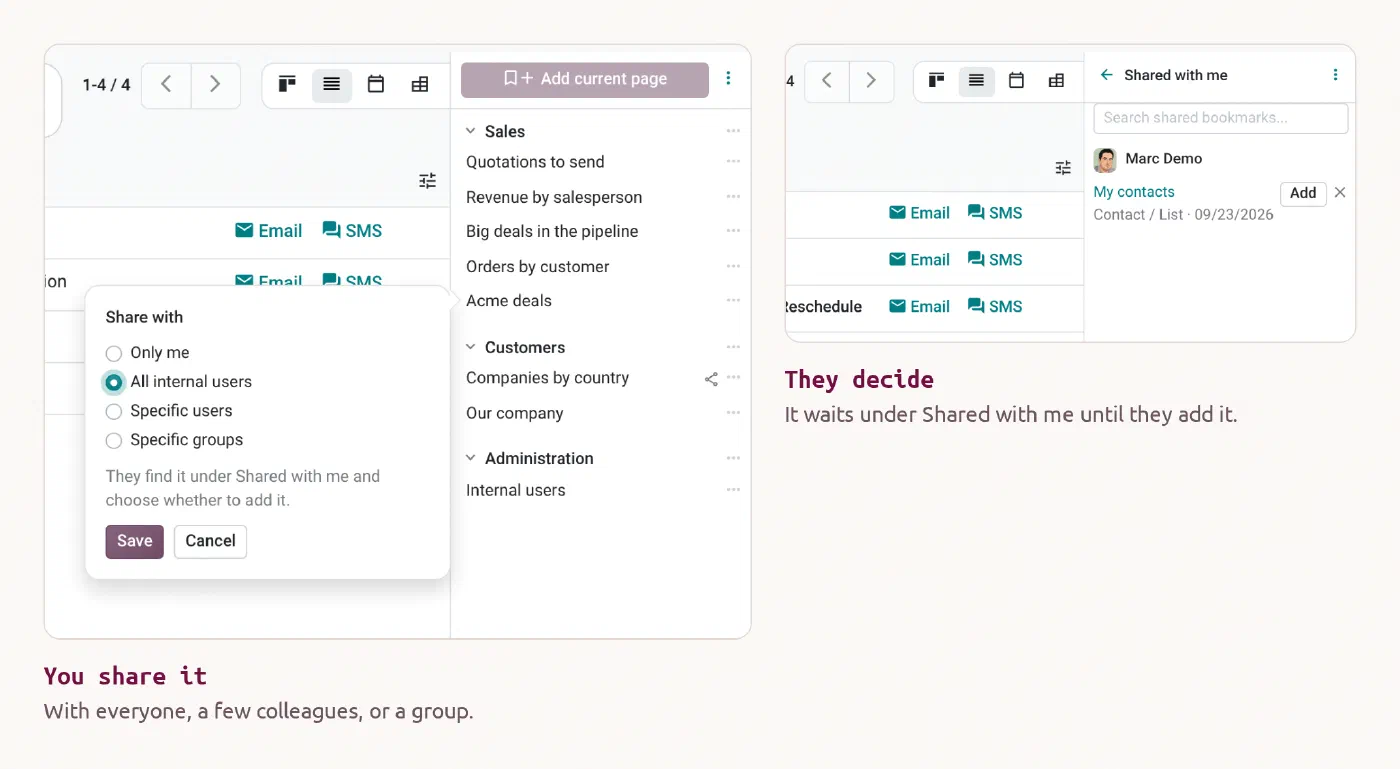
Share a useful screen with your team
Built a report your colleagues keep asking for? Share it with everyone, with a few people, or with a group. It shows up in their Shared with me list, where they can try it and add it to their own bar if they want it. Nobody’s bar fills up with bookmarks they didn’t ask for.
On your phone as well
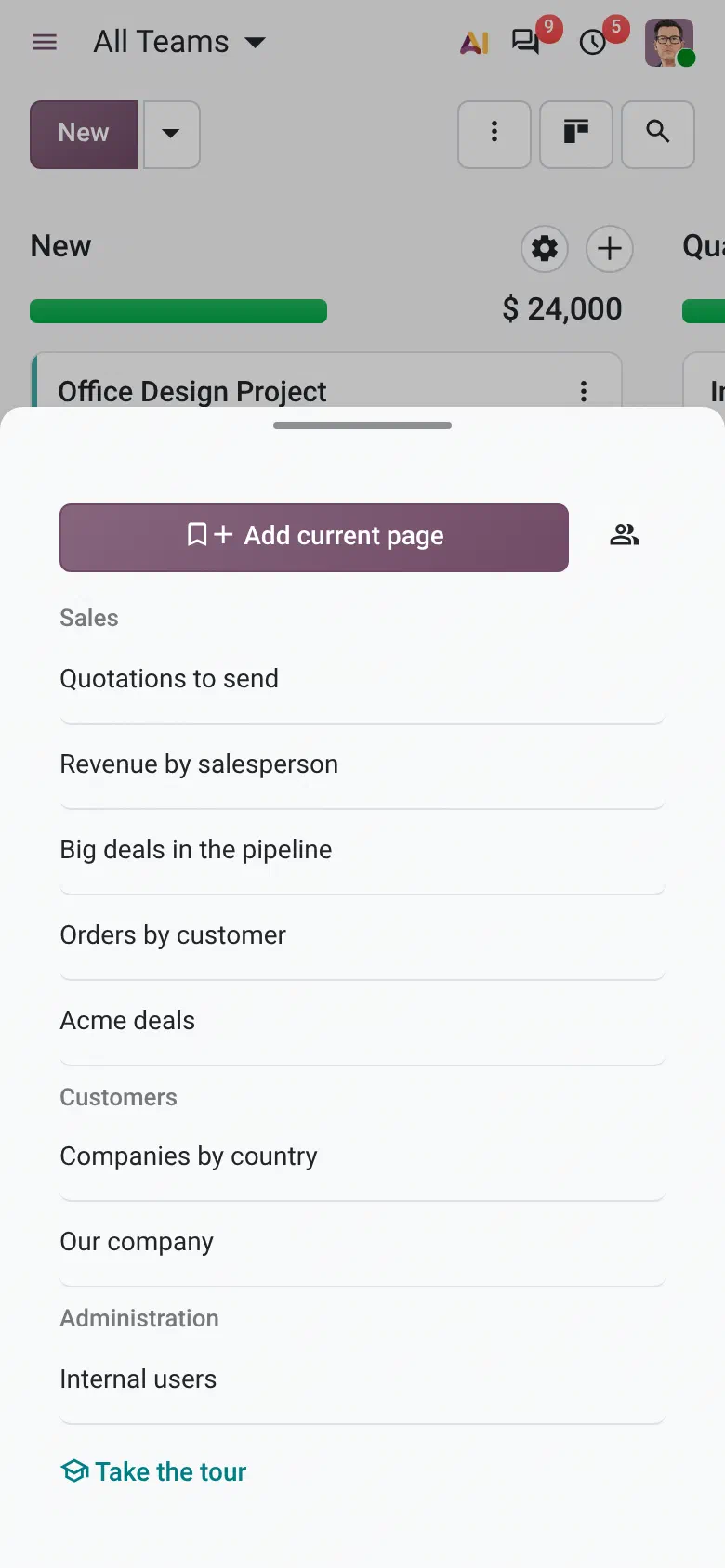
On a small screen your bookmarks are in the menu, and they open as a sheet at the bottom of the screen. Same sections, same bookmarks, and a button to save the page you’re looking at.
The small things that make it pleasant
Opens in a new tab
Every bookmark is a real link. Ctrl+click or middle-click it to open the screen in a new browser tab.
Yours alone
Each user has their own bar. Colleagues only see a bookmark after you share it.
A built-in tour
New users get a short guided tour and save their first bookmark along the way, so there’s nothing to train.
Easy to tidy up
Rename sections in place and drag bookmarks between them. Deleting a section asks first, and you can undo it.
Admins stay in charge
Administrators can review everyone’s bookmarks from Settings and set up bookmarks for any user.
Light install
It only needs Odoo’s own web client, so it runs on Community and Enterprise with no extra Python packages.
Questions people ask
How is this different from Odoo's saved filters (Favorites)?
A favorite lives in the search menu of one screen, so you have to open that screen before you can use it. Bookmarks sit in one bar that follows you across every app, and they also remember the view you were in and the record you had open.
What exactly does a bookmark remember?
The app and the view (list, kanban, pivot, graph and so on), the record if you were on one, your filters, grouping and sort order, plus pivot measures and axes or the chart type and measure.
Does it work on Odoo Community?
Yes. It works the same on Community and Enterprise.
If I change a bookmark I shared, does it change for my colleagues?
No. When a colleague adds your bookmark, they get their own copy. Editing yours, un-sharing it or deleting it leaves theirs alone.
Can I turn the bar off?
Each user can switch it to Minimized or Hidden from My Preferences or from the menu at the top of the bar. New users start with it hidden.
Questions before you buy?
Email me at miika@miikanissi.com. Bug reports and feature ideas are welcome too.
Odoo 19 and 20, Community and Enterprise. Licensed under the Odoo Proprietary License v1.0 (OPL-1).